
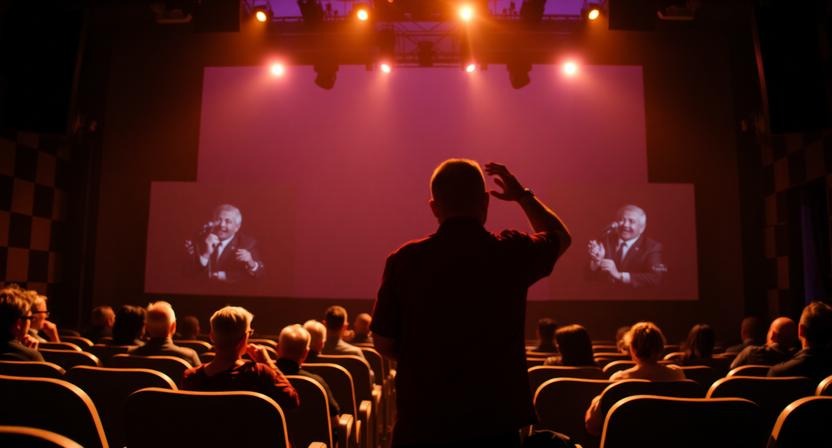
Live presentations can make or break an event, whether you’re leading a worship service, speaking at a conference, or managing visuals for a corporate meeting. In today’s fast-paced, media-driven environments, audiences expect smooth transitions, clear visuals, and a professional flow. ProPresenter has become one of the most trusted tools for delivering live presentations because it’s designed specifically for real-time control and flexibility.
Yet, many presenters only scratch the surface of what ProPresenter can do. Small adjustments in setup, organization, and execution can dramatically improve the quality of a live presentation. This article explores seven practical ProPresenter tips that instantly elevate live presentations, helping you reduce stress, avoid mistakes, and create a more engaging experience for your audience. Whether you’re a beginner or an experienced operator, these insights will help you get more out of the software you already use.
Why ProPresenter Matters in Live Presentations
ProPresenter is not just another slide program. Unlike traditional presentation software built primarily for linear, click-through slideshows, ProPresenter is designed for dynamic live environments. It allows presenters to respond in real time, jump between slides, trigger media instantly, and manage multiple outputs with ease.
This flexibility makes ProPresenter especially popular in churches, live events, conferences, and broadcast settings. However, flexibility also comes with complexity. Without the right workflow and preparation, even powerful tools can feel overwhelming. Understanding how to use ProPresenter efficiently is essential for maintaining confidence and professionalism during a live event.
The following tips focus on improving clarity, speed, and control, which are the foundations of any successful live presentation.
Tip #1: Master Your Slide Organization with Groups and Sets
Understand Groups and Sets
One of the most common mistakes new ProPresenter users make is poor slide organization. When everything is thrown into a single list, it becomes difficult to navigate quickly during a live presentation. ProPresenter solves this problem through Groups and Sets.
Groups act as containers for related content, while Sets function like playlists that determine the order in which slides appear. Together, they create a structure that mirrors the flow of your event.
Why Organization Improves Live Performance
Clear organization reduces mental load during live operation. When content is logically grouped, you can move confidently through your presentation without searching or second-guessing. This is especially important during moments that require quick decisions or unexpected changes.
Well-organized presentations also make collaboration easier. Team members can quickly understand the structure and step in if needed, which is crucial in volunteer-driven or multi-operator environments.
Practical Organization Tips
Use descriptive names for Groups and Sets so their purpose is immediately clear. Break long presentations into sections such as opening, main content, transitions, and closing elements. Reuse Sets for recurring segments like announcements or closing slides to save preparation time.
Strong organization creates a solid foundation that supports every other aspect of your live presentation.
Tip #2: Take Full Advantage of Multi-Screen Output
What Makes Multi-Screen Output Powerful
One of ProPresenter’s standout features is its ability to send different content to multiple screens simultaneously. This capability is invaluable in live environments where the audience and presenters need different information.
For example, the audience may see only clean slides, while presenters view notes, timers, or upcoming slides on a confidence monitor. This separation keeps the presentation polished while giving presenters the tools they need to stay on track.
Common Multi-Screen Use Cases
In worship services, lyrics can be displayed on the main screen while musicians view chord charts on a separate monitor. At conferences, speakers can see notes and countdown timers without distracting attendees. In corporate events, operators can monitor content flow behind the scenes.
Each use case improves clarity and reduces on-stage confusion, making the event feel more professional.
Setup Best Practices
Ensure all displays are properly configured in ProPresenter’s display settings before the event. Test each output to confirm it’s showing the correct content. Label screens clearly so operators know exactly where each output is going.
Once configured correctly, multi-screen output becomes one of the most powerful tools for improving live presentations.
Tip #3: Use Timers and Clocks to Maintain Flow
Why Timing Is Critical in Live Events
Timing issues can disrupt the momentum of a live presentation. Sessions that run long, awkward pauses, or rushed transitions all affect the audience’s experience. ProPresenter includes built-in timers and clocks that help presenters maintain a smooth and predictable flow.
These tools are especially helpful in environments where schedules are tight and multiple segments must fit within a fixed timeframe.
Types of Timers in ProPresenter
Countdown timers are ideal for breaks, session starts, and transitions. Count-up timers help track how long a segment has been running. Clocks display the current time and are useful for production teams managing schedules.
By choosing the right timer for each situation, you gain greater control over pacing.
Using Timers Effectively
Position timers where presenters can see them without distraction. Use color changes or alerts to signal when time is running short. Practice with timers during rehearsals so everyone understands how they work.
When used consistently, timers bring discipline and predictability to live presentations.
Tip #4: Create and Use Consistent Slide Templates
The Importance of Visual Consistency
A consistent visual style makes presentations easier to follow and more visually appealing. Random fonts, colors, and layouts can distract the audience and undermine credibility. ProPresenter’s template system helps eliminate this issue.
Templates allow you to standardize fonts, backgrounds, text placement, and design elements across all slides.
How Templates Save Time
Once templates are created, you no longer need to format slides individually. New content automatically follows the established design, which speeds up preparation and reduces errors.
This is especially useful for teams creating content regularly, such as weekly services or recurring events.
Tips for Effective Template Design
Choose readable fonts and maintain strong contrast between text and background. Avoid overly complex designs that compete with the message. Keep margins consistent so content feels balanced across screens.
Templates create a polished look that audiences notice, even if they don’t consciously realize why the presentation feels more professional.
Tip #5: Learn and Customize Hot Keys for Speed
Why Speed Matters During Live Operation
Live presentations leave little room for hesitation. Hot keys allow operators to trigger actions instantly without navigating menus. This speed is critical when unexpected changes occur.
Hot keys reduce reliance on the mouse and help maintain focus on the presentation rather than the software interface.
Commonly Used Hot Keys
Simple shortcuts like advancing slides, blanking the screen, or triggering timers can make a noticeable difference. ProPresenter also allows custom hot keys, enabling you to tailor shortcuts to your specific workflow.
Assign hot keys to frequently used actions to minimize movement and reaction time.
Building Muscle Memory
Consistency is key when using hot keys. Practice using them during rehearsals until they become second nature. Over time, muscle memory develops, making live operation smoother and less stressful.
Well-used hot keys can transform the way you interact with ProPresenter during live events.
Tip #6: Integrate Media Thoughtfully and Responsively
The Role of Media in Live Presentations
Videos, images, and motion backgrounds can greatly enhance engagement when used intentionally. However, poorly optimized media can cause lag, crashes, or visual clutter.
The goal is to support the message, not overpower it.
Best Practices for Media Use
Optimize media files before importing them into ProPresenter to ensure smooth playback. Test videos and animations in the actual presentation environment to confirm performance. Use layers to separate text from backgrounds, ensuring readability at all times.
Thoughtful media integration adds depth without sacrificing clarity.
Triggering Media Smoothly
Assign media to cues or shortcuts for quick access. This allows you to trigger visuals precisely when needed, rather than scrambling to find files during a live presentation.
When media is integrated seamlessly, it enhances emotional impact and keeps audiences engaged.
Tip #7: Rehearse Using the Live Playback Window
Why Rehearsal Is Non-Negotiable
No amount of technical knowledge replaces rehearsal. Practicing with the same setup you’ll use live helps identify potential issues before they become problems.
Rehearsal builds confidence and ensures everyone understands their role.
How the Live Playback Window Helps
The Live Playback Window allows operators to preview upcoming content without sending it to the main output. This feature is invaluable for preparing transitions and avoiding mistakes.
By staying one step ahead, operators can maintain control even in fast-paced situations.
Team Rehearsals Improve Results
Running through the presentation with the full team helps align timing, expectations, and communication. Confirm that all screens, media, and timers function correctly before the event begins.
Preparation turns complex presentations into smooth, confident performances.
Common ProPresenter Challenges and How to Avoid Them
Even experienced users encounter challenges. Lagging media often results from oversized files or insufficient system resources. Screen output issues are usually tied to incorrect display settings or loose connections. Slide order mistakes often come from poor organization or lack of rehearsal.
Regular maintenance, clear workflows, and practice significantly reduce these issues and improve overall reliability.
Tools and Integrations That Enhance ProPresenter
ProPresenter integrates well with external tools such as remote control apps, MIDI devices, and hardware controllers like Stream Deck. These integrations provide faster access to cues and greater flexibility during live events.
Live streaming platforms also integrate smoothly with ProPresenter, making it easier to support hybrid and online audiences.
Conclusion
ProPresenter is a powerful platform, but its true potential is unlocked through intentional use. By organizing content effectively, leveraging multi-screen output, managing time, maintaining visual consistency, mastering hot keys, integrating media thoughtfully, and rehearsing thoroughly, you can dramatically improve the quality of your live presentations. Each event is an opportunity to refine your workflow and grow your skills. Start implementing these ProPresenter tips today, and you’ll notice immediate improvements in confidence, clarity, and audience engagement. Over time, those small improvements add up to consistently excellent live presentations.